> ## Documentation Index
> Fetch the complete documentation index at: https://porter-mintlify-96cc2c7c.mintlify.site/llms.txt
> Use this file to discover all available pages before exploring further.
# Secure cloud access
> Grant Porter services access to your cloud accounts using workload identity, without managing static credentials
Porter services can authenticate to your cloud accounts without you having to embed static access keys or service-principal secrets in environment variables. Instead, each pod assumes a cloud identity at runtime via your cloud provider's native workload-identity mechanism.
This page covers how to configure these identities for each supported cloud provider, and how to scope their permissions to follow the principle of least privilege.
***
## AWS
Porter uses [EKS Pod Identity](https://docs.aws.amazon.com/eks/latest/userguide/pod-identities.html) to associate an IAM role with a service's pod. Your application code can then use the default AWS SDK credential chain (e.g. `DefaultAWSCredentialsProviderChain` in Java, `aws.config.LoadDefaultConfig` in Go, `boto3.Session()` in Python) and credentials will be resolved automatically — no access keys, no `sts:AssumeRole` calls in application code.
### How it works
When you attach an IAM role to a service, Porter creates an [EKS Pod Identity Association](https://docs.aws.amazon.com/eks/latest/userguide/pod-identities.html) on your cluster that maps the service's Kubernetes service account to the IAM role you specify. At runtime, the EKS Pod Identity agent injects short-lived credentials for that role into the pod.
You are responsible for creating the IAM role and granting it the permissions it needs. Porter does not create the role or modify its permissions.
### Step 1 — Create the IAM role
In your AWS account, create a new IAM role with two things:
1. A **trust policy** that allows EKS Pod Identity to assume the role:
```json theme={null}
{
"Version": "2012-10-17",
"Statement": [
{
"Effect": "Allow",
"Principal": { "Service": "pods.eks.amazonaws.com" },
"Action": ["sts:AssumeRole", "sts:TagSession"]
}
]
}
```
2. A **permissions policy** scoped to only the AWS APIs and resources your service needs.
We strongly recommend following the principle of least privilege: avoid wildcard actions and `Resource: "*"`, and create a dedicated role per service rather than sharing roles across workloads.
### Step 2 — Attach the role to your service
In the Porter dashboard, open the service you want to grant access to and scroll to the **IAM Role Connection** section. Toggle the connection on and enter the IAM role name or full ARN:
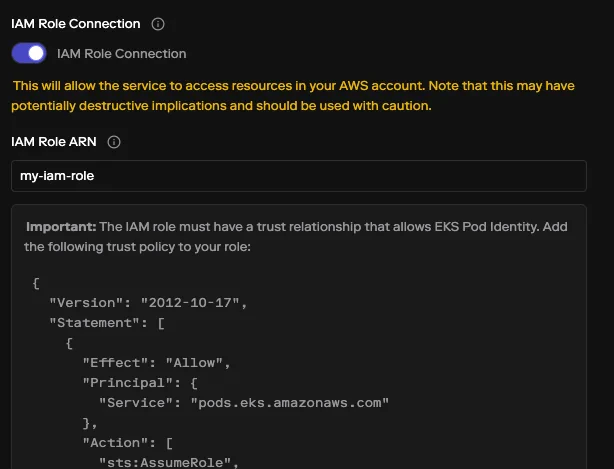 On the next deploy, your pods can use the role immediately — no application restart logic required.
If you manage your app config as code, you can declare the same connection in [`porter.yaml`](/applications/configuration-as-code/overview):
```yaml theme={null}
services:
- name: api
# ...
connections:
- type: awsRole
role: my-app-api-role
```
See [Connections in porter.yaml](/applications/configuration-as-code/services/connections#aws-role-connection) for the full schema.
***
## Azure
Porter uses [Azure Workload Identity](https://learn.microsoft.com/en-us/azure/aks/workload-identity-overview) to federate a service's Kubernetes service account with a User Assigned Managed Identity (UAMI) in your Azure subscription. Your application code can then use `DefaultAzureCredential` (or any credential type that supports workload identity) and Azure will issue tokens for the UAMI on the pod's behalf.
### How it works
When you attach a managed identity to a service, Porter creates a [federated identity credential](https://learn.microsoft.com/en-us/azure/active-directory/develop/workload-identity-federation) on the UAMI you specify. The credential trusts the AKS cluster's OIDC issuer to vouch for a specific Kubernetes service account. At runtime, the pod presents a projected OIDC token and Azure exchanges it for an access token scoped to the UAMI.
You are responsible for creating the UAMI and granting it role assignments. Porter does not create the UAMI or modify its permissions.
### Step 1 — Create a User Assigned Managed Identity
In the same Azure subscription as your AKS cluster, create a User Assigned Managed Identity and grant it the Azure RBAC role assignments needed to access the specific resources your service will call.
We strongly recommend following the principle of least privilege: scope role assignments to individual resources rather than resource groups or subscriptions, prefer narrow data-plane roles (e.g. `Storage Blob Data Reader`) over broad roles like `Contributor`, and create a dedicated UAMI per service.
You don't need to add any federated credentials yourself — Porter creates the one mapping your service's Kubernetes service account to this identity on the next deploy.
### Step 2 — Attach the identity to your service
In the Porter dashboard, open the service you want to grant access to and scroll to the **Azure Managed Identity Connection** section. Toggle the connection on and enter the managed identity name and resource group:
On the next deploy, your pods can use the role immediately — no application restart logic required.
If you manage your app config as code, you can declare the same connection in [`porter.yaml`](/applications/configuration-as-code/overview):
```yaml theme={null}
services:
- name: api
# ...
connections:
- type: awsRole
role: my-app-api-role
```
See [Connections in porter.yaml](/applications/configuration-as-code/services/connections#aws-role-connection) for the full schema.
***
## Azure
Porter uses [Azure Workload Identity](https://learn.microsoft.com/en-us/azure/aks/workload-identity-overview) to federate a service's Kubernetes service account with a User Assigned Managed Identity (UAMI) in your Azure subscription. Your application code can then use `DefaultAzureCredential` (or any credential type that supports workload identity) and Azure will issue tokens for the UAMI on the pod's behalf.
### How it works
When you attach a managed identity to a service, Porter creates a [federated identity credential](https://learn.microsoft.com/en-us/azure/active-directory/develop/workload-identity-federation) on the UAMI you specify. The credential trusts the AKS cluster's OIDC issuer to vouch for a specific Kubernetes service account. At runtime, the pod presents a projected OIDC token and Azure exchanges it for an access token scoped to the UAMI.
You are responsible for creating the UAMI and granting it role assignments. Porter does not create the UAMI or modify its permissions.
### Step 1 — Create a User Assigned Managed Identity
In the same Azure subscription as your AKS cluster, create a User Assigned Managed Identity and grant it the Azure RBAC role assignments needed to access the specific resources your service will call.
We strongly recommend following the principle of least privilege: scope role assignments to individual resources rather than resource groups or subscriptions, prefer narrow data-plane roles (e.g. `Storage Blob Data Reader`) over broad roles like `Contributor`, and create a dedicated UAMI per service.
You don't need to add any federated credentials yourself — Porter creates the one mapping your service's Kubernetes service account to this identity on the next deploy.
### Step 2 — Attach the identity to your service
In the Porter dashboard, open the service you want to grant access to and scroll to the **Azure Managed Identity Connection** section. Toggle the connection on and enter the managed identity name and resource group:
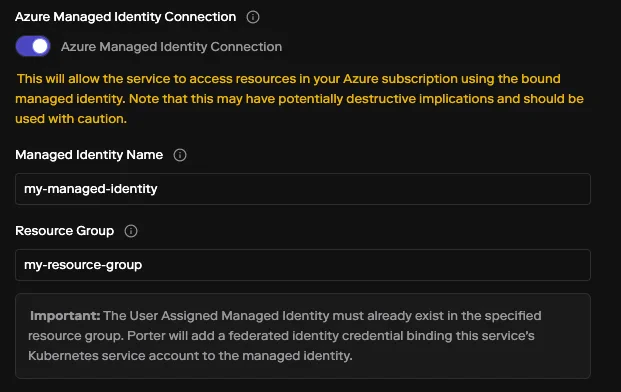 On the next deploy, Porter creates the federated identity credential on the UAMI. From your application code, use `DefaultAzureCredential` from the Azure SDK and Azure will resolve credentials automatically — no client secrets, no certificates.
If you manage your app config as code, you can declare the same connection in [`porter.yaml`](/applications/configuration-as-code/overview):
```yaml theme={null}
services:
- name: api
# ...
connections:
- type: azureManagedIdentity
identityName: my-app-api-identity
resourceGroup: my-resource-group
```
See [Connections in porter.yaml](/applications/configuration-as-code/services/connections#azure-managed-identity-connection) for the full schema.
***
## GCP
Workload identity support for GCP is **in development**. The equivalent flow on GKE — binding a Porter service to a Google service account via [Workload Identity Federation](https://cloud.google.com/iam/docs/workload-identity-federation) — is not yet generally available.
If you'd like this enabled for your project, reach out to Porter support and we'll work with you to get early access.
***
## Related documentation
* [Configuration as code](/applications/configuration-as-code/overview) — Overview of managing Porter apps via `porter.yaml`
* [Connections in porter.yaml](/applications/configuration-as-code/services/connections) — Reference for all connection types, including the YAML schema
* [AWS EKS Pod Identity](https://docs.aws.amazon.com/eks/latest/userguide/pod-identities.html) — AWS documentation
* [Azure Workload Identity](https://learn.microsoft.com/en-us/azure/aks/workload-identity-overview) — Azure documentation
On the next deploy, Porter creates the federated identity credential on the UAMI. From your application code, use `DefaultAzureCredential` from the Azure SDK and Azure will resolve credentials automatically — no client secrets, no certificates.
If you manage your app config as code, you can declare the same connection in [`porter.yaml`](/applications/configuration-as-code/overview):
```yaml theme={null}
services:
- name: api
# ...
connections:
- type: azureManagedIdentity
identityName: my-app-api-identity
resourceGroup: my-resource-group
```
See [Connections in porter.yaml](/applications/configuration-as-code/services/connections#azure-managed-identity-connection) for the full schema.
***
## GCP
Workload identity support for GCP is **in development**. The equivalent flow on GKE — binding a Porter service to a Google service account via [Workload Identity Federation](https://cloud.google.com/iam/docs/workload-identity-federation) — is not yet generally available.
If you'd like this enabled for your project, reach out to Porter support and we'll work with you to get early access.
***
## Related documentation
* [Configuration as code](/applications/configuration-as-code/overview) — Overview of managing Porter apps via `porter.yaml`
* [Connections in porter.yaml](/applications/configuration-as-code/services/connections) — Reference for all connection types, including the YAML schema
* [AWS EKS Pod Identity](https://docs.aws.amazon.com/eks/latest/userguide/pod-identities.html) — AWS documentation
* [Azure Workload Identity](https://learn.microsoft.com/en-us/azure/aks/workload-identity-overview) — Azure documentation